
Navigating Zeta Login FAQs
How does Zeta Login work?
Zeta Login is integrated into and handles authentication to a number of Zeta products and workspaces.
After migration to Zeta Login, users will be asked to use Zeta Login by default.
Zeta Login users will be able to sign-in using the appropriate method in accordance with their home organization’s authentication process:
-
Default: Email followed by password (meeting NIST guidelines)
-
Two-Factor: Email followed by password and authentication code
-
Single-Sign-On: Email followed by redirection to SSO provider
How do I switch to other applications from Zeta Login?
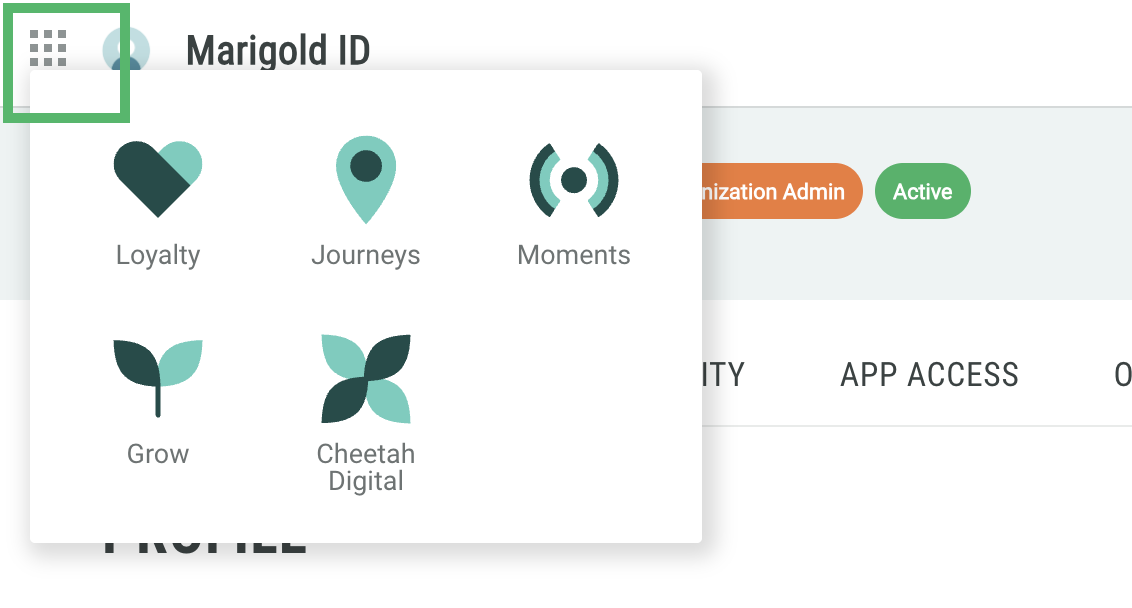
An app switcher is available at the left side of the top menu which enables you to switch between any applications you have access to.
How do I switch to other Business Unit from Zeta Login?
-
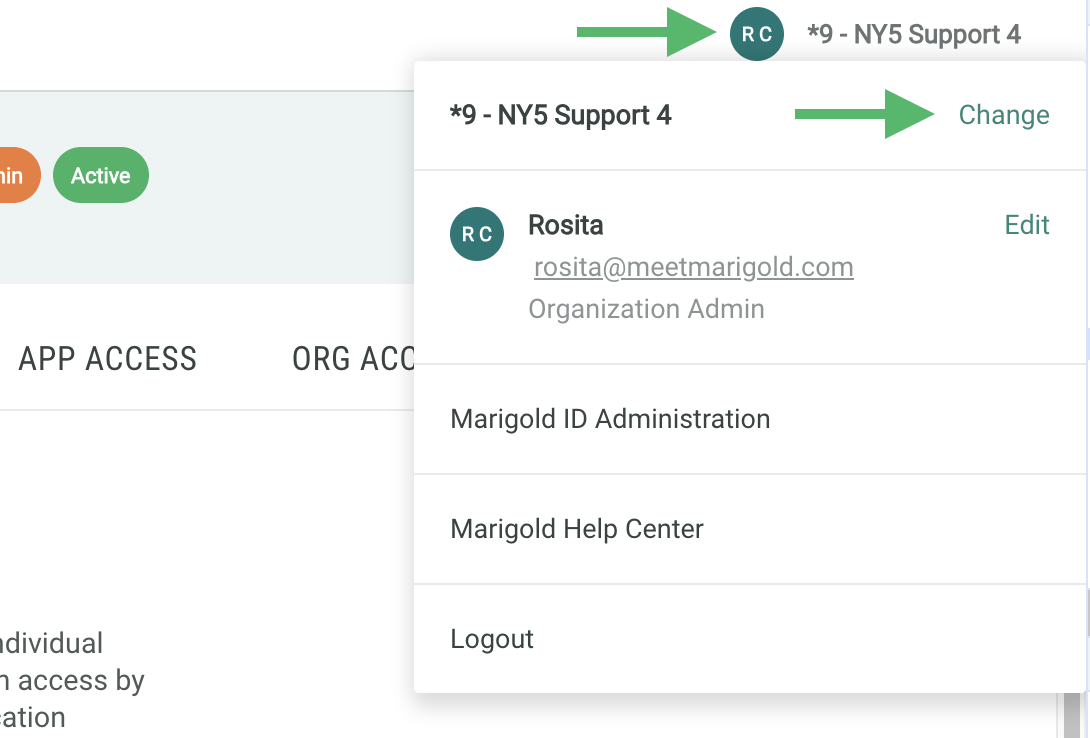
Click your user icon in the top right corner
-
From the drop down, click Change next to the name of the business unit you are currently using
-
Select a new business unit from the window that appears
How do I check for my access in Zeta Login?
To view your current application and business unit access:
-
Log into the Zeta Login User Workspace. The Profile tab is selected by default.
-
Select the App Access tab. This tab displays all the business units and applications to which you have been assigned.
-
Optionally search for a business unit by entering all or part of the business unit name in the search field.
If you need access to another application and / or business unit, please reach out to your Organization Administrator.
What can I do if my Zeta Login account is locked or suspended?
As a user, there are several states that your profile can be in. This can be determined by the administrators, or by your level of activity on the platform.
Depending on whether your account is locked, suspended, or deactivated, there are different steps to follow.
See our guide on User Access States on how to troubleshoot your account access issues.
